Git flow is a set of utilities based on the article A successful Git branching model. They integrate with Git to provide a more organic development workflow, one that closely follows how projects evolve. In this article I share how Git flow has helped me keep better control of versions.
Installation
Git flow is available for Linux, Mac, and Windows. To install it, follow the documentation.
So far I have only installed it on Windows, where I think the best option is msysgit.
Starting git-flow
Any Git repository can be configured to use Git flow with:
$ git flow initThe script will ask a few questions; it is generally best to keep the default values.
When working on an existing project, after cloning the repository we need to create the develop branch from origin/develop, then initialize Git flow:
$ git checkout -b develop origin/develop
$ git flow init
New features
Most of the time we will work on branches called features. They let us develop a new capability and later integrate it into develop.
To start a feature, run:
$ git flow feature start authenticationThis creates a branch named feature/authentication, where we can develop and save revisions until the feature’s goals are met.
To finish the feature, run:
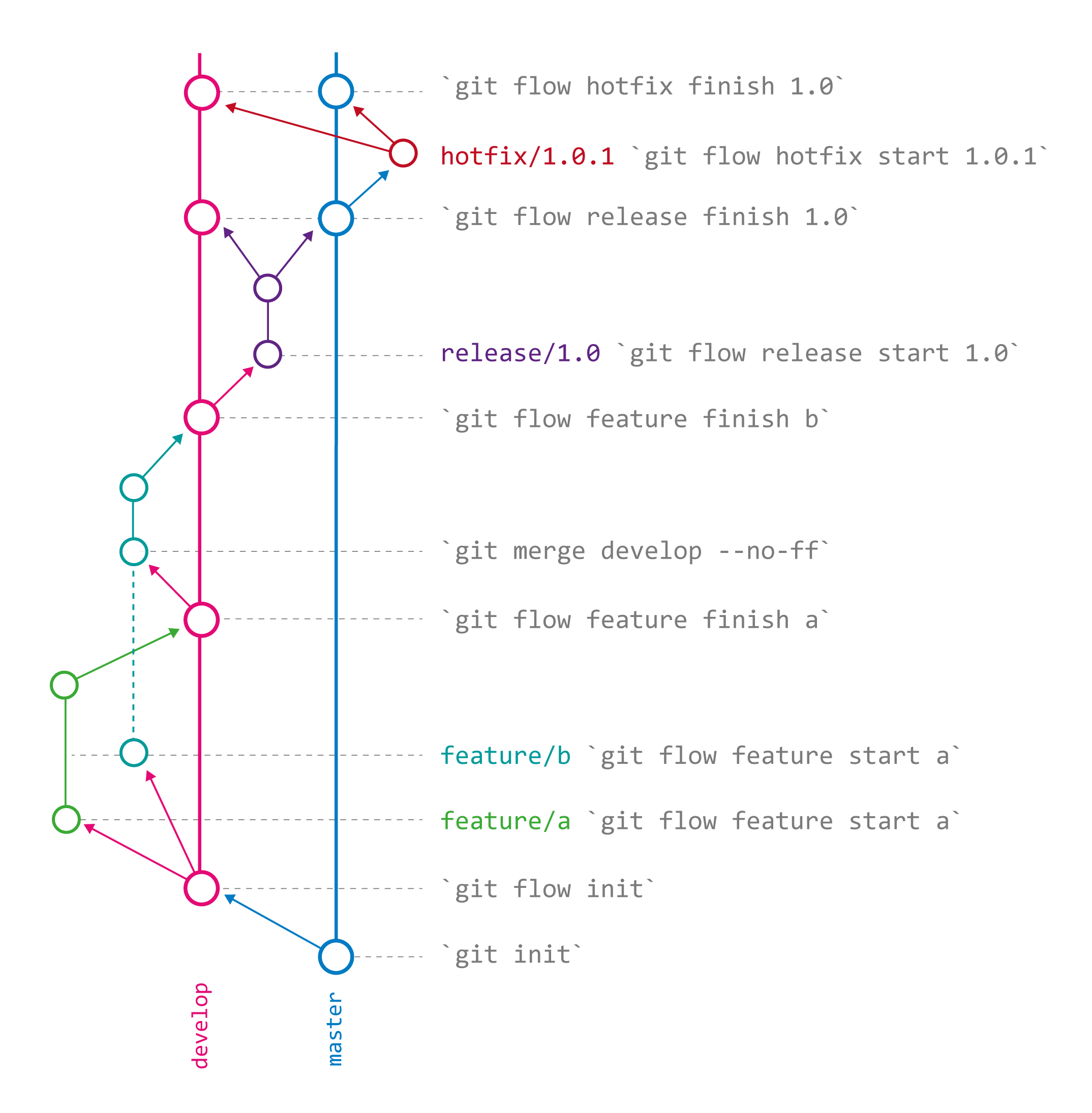
$ git flow feature finish authenticationGit flow merges the feature into the development branch and then removes it. One advantage of Git flow is that revisions do not form a boring straight line: each feature can be visually identified because it branches off develop and joins it again with a message that references the merged branch.
Renaming a feature
If we realize after creating a feature that its name is not quite right, we can rename the branch with:
$ git branch -m feature/new-nameThe important part is keeping the feature/ prefix so Git flow still recognizes it as a feature.
Changing the commit message
Running git flow feature finish automatically creates a commit message like this:
Merge branch feature/authentication into developIf we want to change the message—for example, to say the new feature closes issue 195—we can use:
git commit --amend -m "Merge feature/authentication closes #195"Developing several features at once
Having several active features is common in collaborative projects. What matters is integrating each developer’s work.
Git flow lets us have multiple features at the same time. They all branch off develop and can be merged back in the future, so some features will inevitably fall behind. If, for example, we are developing a feature while another developer adds changes to develop, our feature is no longer up to date. To include those changes in the feature, we can run:
$ git pull origin develop
$ git merge develop --no-ff
Git flow incorporates the changes into our branch so we can keep developing and eventually finish the feature.
To avoid conflicts when merging features into the development branch, it is best for features to be clearly scoped and to contain few revisions.
Releasing new versions
Once we have added several features and the project is ready for a new version, we use:
$ git flow release start 1.0The command creates a branch named release/1.0, based on develop by default.
To finish the release, run:
$ git flow release finish 1.0If the command completes without errors, we will have a new tag named 1.0, with both master and develop aligned.
Starting a release from a base other than develop
Sometimes develop is far ahead of master and may not meet every requirement for publishing a new version. Git flow lets us select an intermediate revision to mark the version:
$ git flow release start 1.1 <ref>After finishing the release, master will be closer to develop, and both will contain the changes made in the 1.1 tag.
Changing the version
Development projects usually contain special files that determine the project version: *.gemspec, styles.css, or grails.properties, for example. Ideally, these files should only change during releases. We can also change the README or global configuration, but if we need to fix an error we should use hotfixes.
It is worth mentioning that semantic versioning is recommended for naming versions.
Urgent fixes, or hotfixes
After publishing our project we can keep developing, but if bugs appear in the production version, we use:
$ git flow hotfix start 2.3.1Git flow creates a branch called hotfix/2.3.1, which branches off master: our production version.
The branch name is the tag that will be created when the corrections are complete. Following semantic versioning, a hotfix should increment the third digit because it is a small change. For example, if the current version is 2.3, the fix should be 2.3.1.
To finish the hotfix, run:
$ git flow hotfix finish 2.3.1Aliases
Git flow commands are rather long, but Git aliases save us a few keystrokes:
$ git config --global alias.feat "flow feature"
$ git config --global alias.release "flow release"
$ git config --global alias.fix "flow hotfix"
Conclusions
Git flow adds another dependency to the development process, so it may not be especially relevant for very small projects. Still, if the project grows, we can introduce Git flow at any point in its development.
So far I have had a good experience using Git flow. The projects where I have used it have been medium-sized—between 100 and 1,000 revisions—with few collaborators.